How to Change Minecraft Resolution?
Minecraft acts as a gateway towards endless possibilities and creativity where players can craft and build anything they want in the HD world. Wanna create your world in a higher resolution? In this article, players will learn about How to Change Minecraft Resolution?
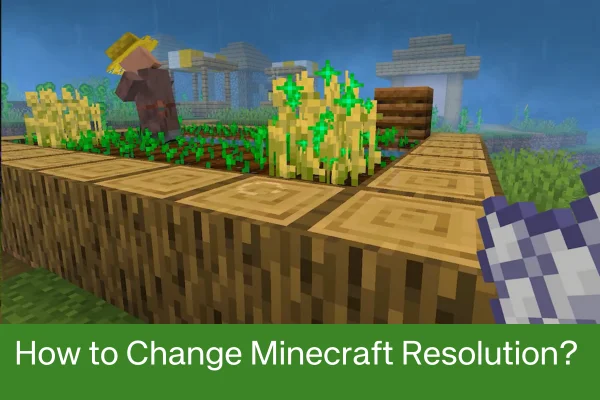
This resolution includes the height and width at which the games’ display renders. Players can adjust the resolution settings easily and get games’ performance and clarity accordingly. If you’re facing blurry pixels in Minecraft, changing resolution is the perfect solution.
Resolutions Availability in Minecraft APK
In Minecraft Pocket Edition, Resolution basically means the size of height and width to make the performance and clarity low and high. These resolutions are both vertical and horizontal. Players can adjust the resolutions in the game’s settings easily with our ultimate guide. We recommend you to play the survival game with full and high resolution with clear graphics. Start adjusting the value of resolution in Minecraft to experience the best game ever with realistic pixels and graphics. Also download the fancy Minecraft Tanukis Texture Pack to add cute mobs to your game.
Resolutions Available
The Minecraft has different resolutions available including:
- Standard HD Resolution: 720p (1280×720).
- Full HD: 1080p (1920×1080).
- 4K: 1440p (2560×1440).
Resolution Changing Methods
There are different methods in Minecraft that players can use to change the resolution. In this section, we have covered it all for you. A): by giving java arguments B): with Minecraft launcher. C): using third party software.
For Java Edition
Java Edition is the authentic and original version of Minecraft where creativity and adventures have no limits. In this edition of Minecraft, players can adjust the games’ resolution to HD with different methods that are described below in steps.
Java Arguments
- Start customizing your games’ resolution with the Java arguments.
- Players have to download Minecraft launcher from the original website.
- Click on installation
- Now select the games’ version after the game’s installation.
- Now, you have to search for JVM Arguments to get the editable section.
- In the section, players can change and customize the resolution accordingly.
Screen Method
- If you want a convenient way to change the Minecraft resolution, the screen method is for you to use.
- Download the Minecraft game and launch it from the start menu.
- Now select video settings from the main menu.
- After that, change the screen size to full.
- Choose the perfect game resolution according to your preferences.
Third Party Software
Here’s another method of changing the Minecraft resolution using third party software. Players can use different tools such as the Optifine, Badlion Client, MultiMC and Minecraft Tweaker.
- Download your favorite software.
- Now launch the software into the Minecraft game.
- Now open the resolution settings tab.
- Set the resolutions accordingly.
For Bedrock Edition
Minecraft Bedrock Edition is another update of the sandbox game that allows players to enjoy crafting and building in mobile applications as well from Android to iOS. If you’re a bedrock player and want to improve your gameplay performance and pixels, you can easily adjust the resolution settings by following our ultimate steps.
- Download Minecraft and launch it.
- Now sign in to your Minecraft account.
- After that, go to settings and select video settings.
- From the video settings tab, select the Render Distance option.
- From the graphics’ option tab, select the resolution.
- Choose from 3 resolution options including low, medium and high.
For Console Edition
If you’re addicted to Xbox and Playstation, this method is for you. You can now change the Minecraft game resolution in the given consoles easily by following our ultimate steps.
- Launch Minecraft on your console.
- Now click on video settings from the settings tab.
- Choose between different resolutions available.
- From 720p to 1440p, choose your desired resolutions.
Reasons to Change Minecraft Resolution
There are many reasons that you should change your Minecraft’ s resolution. The main reasons why to change the resolution are given below:
- To avoid lagging and bring better gaming performance, players need to change the resolution to low.
- For sharp graphics and visuals, players can improve their performance with the changes in resolution.
- Compatibility matters and may be your gaming device may not be compatible with the default resolution. So you have to set it accordingly.
Pros & Cons of Changing Resolution in Minecraft
As Minecraft is a game of creativity that has many features to experience, it has a feature of resolution that has pros as well as cons briefly highlighted below.
Pros
The main pros of changing the resolution are:
- Play the game in more high quality graphics.
- More clarity in the shader/texture packs.
- More clarity in the gaming elements.
- Set the resolution according to your screen as it gives higher performance.
Cons
The main cons of changing the resolution are:
- Players need a high GUI.
- Using high resolution leads to battery drainage.
- No outdated devices are perfect for changing resolution.
- Players may get lagging issues when resolution becomes high.